
Energy-based planning in Notion for ADHD
Build a flexible Notion task list with energy labels, time estimates and filtered views. A practical planning guide, with clear limits.
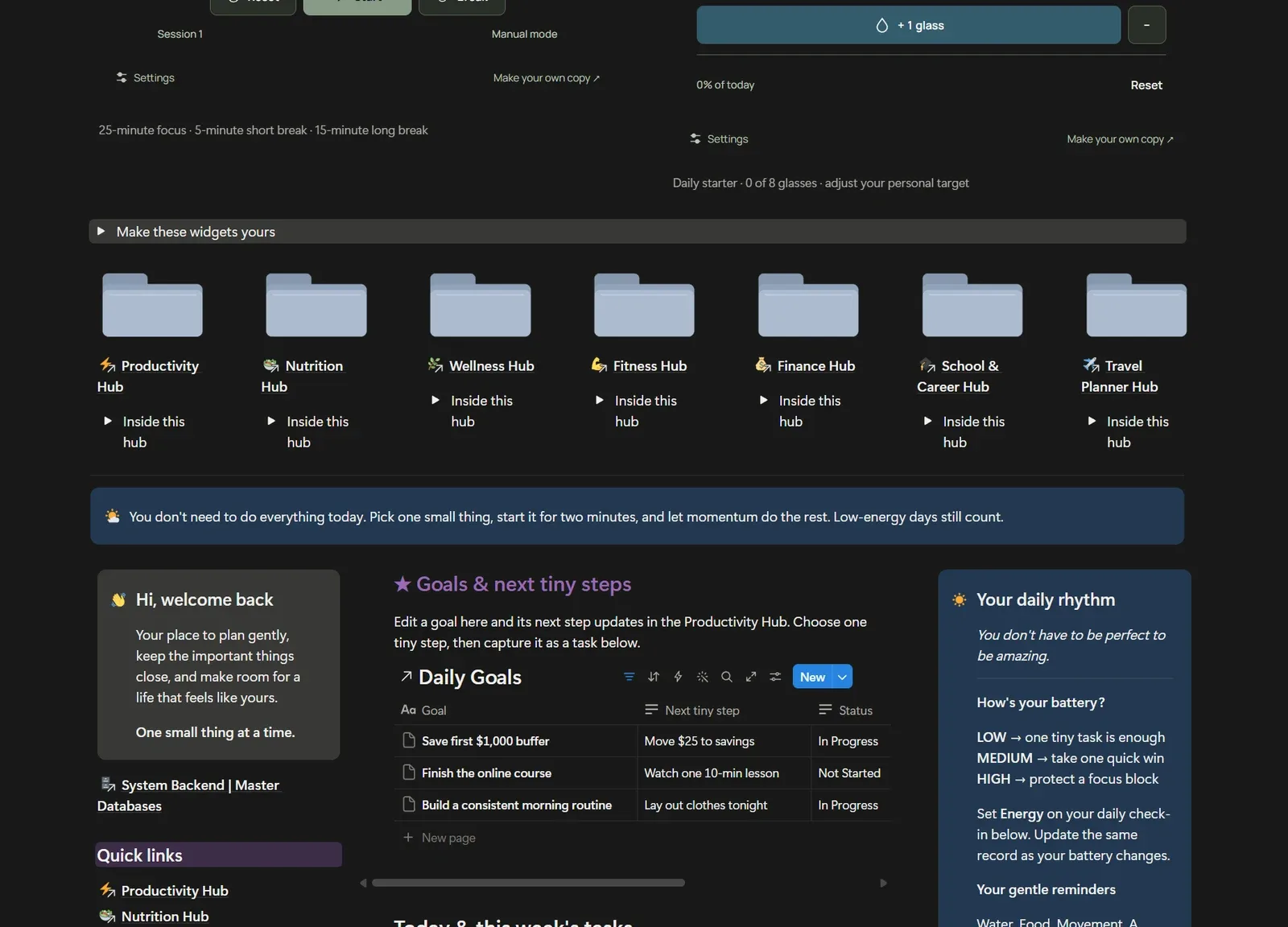
Energy-based planning adds a practical question to your task list: what can I reasonably work on with the energy and time I have today? In Notion, you can add energy labels and duration estimates, then build a few filtered views for different days.
If rigid time blocks have been difficult to maintain, this offers another way to organize flexible work. Keep appointments and real deadlines in your calendar; use energy labels to choose between tasks that can move.
ADHD can affect planning and organization, as described by the National Institute of Mental Health. The setup below is an organizational experiment, not a treatment or a promise of improved symptoms. People have different needs; keep what helps and change what does not.
When a calendar needs a companion
A calendar tells you when a commitment happens. A task database can also record its likely effort, duration and next action. Neither requires your energy to be constant. You can keep a deadline visible while choosing a smaller preparatory step on a lower-capacity day.
This tutorial describes a custom setup. Property names and views may differ from an existing template, including ADHD Life OS. Inspect your workspace before changing it.
Core Pillars of Energy-Aware Notion Architecture
The setup below has three parts:
Choose a task → check its deadline → consider available energy → select a manageable next step.
Pillar 1: The Master Task Database with Energy Attributes
Alongside dates and status, you can add a few planning labels:
- Energy Level (Select):
⚡ High Energy / Deep Focus,🔋 Medium Energy / Steady Routine,🪫 Low Energy / Quick Win. - Activity Tag (Select):
Quick Win,Creative Flow,Admin Reset,Unpleasant Friction. - Estimated Minutes (Number): A rough estimate, such as 15, 30 or 45 minutes. Compare the estimate with your experience and adjust it.
Pillar 2: Dynamic Dashboard Filtering (The "Right Now" View)
Keep a full backlog available, and create a smaller linked database view for choosing today’s work. Filter it by:
Planned Date is on or before TodayStatus is not Done- A toggle filter for your current energy state.
When you are having a low-energy day, you flip the view to "Low Energy Only." Only tasks matching that filter appear. This does not limit the list to three tasks automatically: choose a short list yourself. Keep a separate deadline view so important work does not disappear from review.
Pillar 3: The Dopamine Menu & Low-Pressure Scratchpad
Beside your task queue, your workspace needs an immediate, non-judgmental Brain Dump scratchpad and a Dopamine Menu—a pre-populated list of sensory resets, physical movements, and micro-rewards you can choose when you want a break. These labels do not measure or change dopamine levels.
Step-by-Step Blueprint: Building the System in Notion
Here is one suggested schema. Adapt the labels to your own workspace.
Step 1: Create the Master Tasks & Projects Database
Create a new Database in Notion named DB_MASTER_TASKS. Add the following properties:
| Property Name | Property Type | Options / Configuration |
|---|---|---|
| Task Name | Title | Text description of the action |
| Status | Status | Not Started, In Progress, Done, Let It Go (No Shame) |
| Planned Date | Date | The date you intend to do the work; keep hard deadlines in a separate Due Date property |
| Energy Level | Select | Low Energy, Medium Energy, Deep Work |
| Activity Tag | Select | Quick Win, Creative Flow, Admin Reset |
| Estimated Minutes | Number | Number of minutes (15, 30, 60) |
| Category | Select | Work, Personal, Health, Admin |
Step 2: Configure the "No Shame" Status Property
Notice the inclusion of Let It Go (No Shame). This is optional. When a task has sat on your list for three weeks and is no longer genuinely necessary, dragging it to "Done" feels dishonest, but leaving it open causes guilt. Moving it to Let It Go records a deliberate decision to drop it. Do not drop a contractual or essential obligation without resolving it.
Step 3: Build the Dashboard Views
On your main dashboard page, embed linked views of DB_MASTER_TASKS with three distinct tabs:
Tab 1: "Low Energy Days" (Friction Eliminator)
- Layout: Board or List View
- Filter:
Statusis notDoneANDStatusis notLet It Go (No Shame)Planned Dateis on or beforeToday- Add a nested OR group:
Energy LevelisLow EnergyOREstimated Minutesis<= 15
- Purpose: The first view you open when you wake up feeling exhausted, overwhelmed, or foggy.
Tab 2: "Quick Wins"
- Filter:
Statusis notDoneANDStatusis notLet It Go (No Shame)Activity TagisQuick Win
- Purpose: For choosing a small action when starting feels difficult. There is no promised neurological effect.
Tab 3: "Deep Work Sprint"
- Filter:
Statusis notDoneANDStatusis notLet It Go (No Shame)Energy LevelisDeep Work
- Purpose: For hyperfocus windows when you have uninterrupted quiet time and high cognitive clarity.
Practical ADHD Workflows: From Paralysis to Momentum
Having the database is only half the battle; how you interact with it determines whether it survives past the first week.
The "Tiny First Step" Technique
A broad task such as "Clean the office" can hide many decisions. Try writing a concrete next action instead.
Try this: Write only the first physical action in your task title:
- ❌ "Write article on SEO"
- ✅ "Open Google Docs and write the working title"
- ❌ "Clean kitchen"
- ✅ "Put 3 coffee mugs in the dishwasher"
A small first action gives you a clear place to start. It may or may not lead to a longer session; completing that one action still counts.
The End-of-Day 3-Minute Reset
At the end of your day, do not reorganize your entire life. Follow this simple 3-step routine:
- Check off completed items.
- If an unfinished task is no longer vital, move it to
Let It Go. - Select one single high-energy task and two low-energy tasks for tomorrow. Do not plan 12 tasks. Protect your future self from overwhelm.
Contextual Internal Resources
To expand your neurodivergent productivity toolkit, explore these published resources:
- Deepen your focus transitions by building an interactive dopamine menu in Notion.
- Explore the full architecture and database schemas of the ADHD Life OS | Launchist Edition.
- Review setup requirements, supported actions, and constraints in our AI Notion integration guide.
Build it yourself or use a starting point
Start with one task database and a few views. You do not need multiple connected databases to try this method. Follow Notion’s view and filter guide if the controls in your workspace differ.
If you prefer a starting point, ADHD Life OS includes Master Tasks & Projects, a Daily Habits & Wellness Tracker, a Finance Tracker and seven lifestyle hubs. Its task properties include Energy Level, Dopamine Tag and Estimated Minutes. These are organizational labels; they do not measure brain chemistry. The custom schema in this guide is not an exact inventory of the purchased workspace.
Frequently Asked Questions
How is energy-based planning different from the Eisenhower Matrix?
The Eisenhower Matrix sorts tasks by urgency and importance. Energy labels add another dimension: the effort you expect a task to take today. Review urgency alongside energy so flexible planning does not hide deadlines.
What if I abandon my Notion dashboard for two weeks?
Open the full backlog, check real deadlines, archive tasks you no longer need, and select one next action. You do not need to reconstruct every missed day.
Can I use AI with my ADHD Notion system?
Keep AI optional. Review the Launchist AI assistance guide for setup, permissions, supported actions and verification requirements. The planning approach here uses standard database views.
Sources and setup references
- NIMH: ADHD in adults — background on planning difficulties and clinical care, not evidence that this Notion workflow treats ADHD.
- Notion: database views, filters, sorts and groups — technical reference for the views used here.